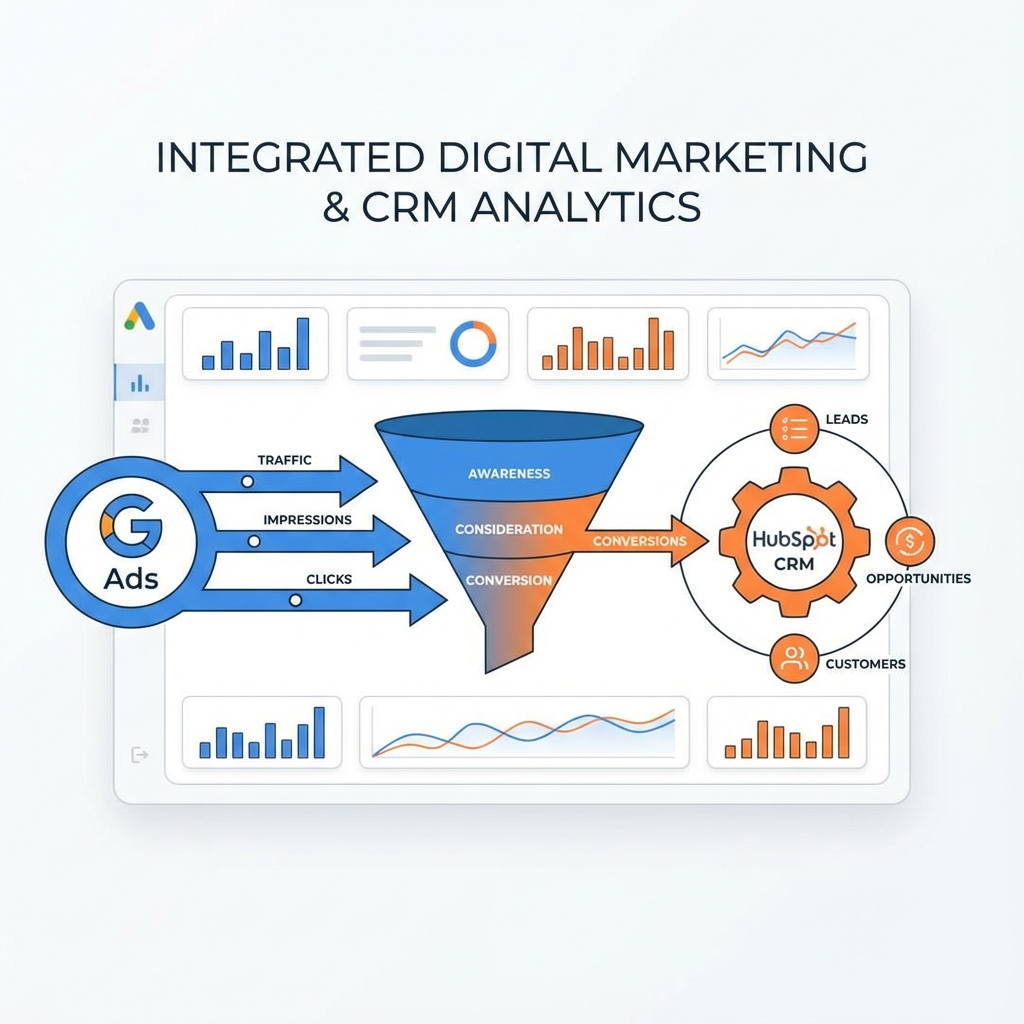
If you're spending money on Google Ads but can't tell which campaigns actually generate revenue in your CRM, you're flying blind. This guide walks you through connecting Google Ads to HubSpot so you can finally see the full picture.
The Problem with Default Tracking
Most businesses set up Google Ads conversion tracking to count form submissions or page views. The problem? These "conversions" often don't match what your sales team considers a real lead, let alone a closed deal.
Common symptoms:
- Google Ads shows 50 conversions, but your CRM has 30 new contacts
- You can't see which campaign generated your best deals
- Sales says lead quality is poor, but you can't prove which source is the issue
Real Example: A B2B SaaS company spent $15,000/month on Google Ads. Their conversion tracking showed a 3% conversion rate. After implementing down-funnel tracking, they discovered only 0.8% of clicks became qualified opportunities—but those opportunities had a 40% close rate. This insight helped them double down on the campaigns that actually drove revenue.
The Solution: Down-Funnel Conversion Import
The key is importing conversion events from HubSpot back into Google Ads. Instead of counting form fills, you count:
| Conversion Type | What It Measures | Value for Optimization |
|---|---|---|
| MQL | Marketing Qualified Leads | Medium |
| SQL | Sales Qualified Leads | High |
| Opportunity | Deal Created | Very High |
| Closed Won | Actual Revenue | Highest |
Step 1: Capture the GCLID
The GCLID (Google Click Identifier) is a unique ID attached to each ad click. You need to capture this in HubSpot when a lead converts.
Add a hidden field to your forms:
<input type="hidden" name="gclid" id="gclid">
Capture it with JavaScript:
// Place this in your website's header or form page
function getGclid() {
  const urlParams = new URLSearchParams(window.location.search);
  return urlParams.get('gclid') || '';
}

// Store in cookie for 90 days (B2B sales cycles)
function storeGclid() {
  const gclid = getGclid();
  if (gclid) {
    document.cookie = `gclid=${gclid};max-age=7776000;path=/`;
  }
}

// Retrieve from cookie for form submission
function getStoredGclid() {
  const match = document.cookie.match(/gclid=([^;]+)/);
  return match ? match[1] : '';
}

// Set form field value
document.getElementById('gclid').value = getStoredGclid() || getGclid();
Pro Tip: Store the GCLID in a cookie with a 90-day expiration. B2B sales cycles are long—a visitor might click an ad today but not fill out a form for weeks.
Step 2: Create Custom Properties in HubSpot
Create these contact properties in HubSpot:
| Property Name | Field Type | Purpose |
|---|---|---|
| GCLID | Single-line text | Stores the click ID |
| Google Ads Campaign | Single-line text | Campaign name for reporting |
| Conversion Sent to Google | Checkbox | Prevents duplicate sends |
| Google Ads Conversion Date | Date | When conversion was sent |
How to create in HubSpot:
- Go to Settings → Properties
- Click "Create property"
- Select "Contact" as object type
- Fill in property details
- Set field type and group
Step 3: Set Up Offline Conversion Import
In Google Ads:
- Go to Tools & Settings → Conversions
- Click the + button and select "Import"
- Choose "CRM, files, or other data sources"
- Select "Track conversions from clicks"
- Name your conversion action (e.g., "HubSpot SQL")
- Set conversion window to 90 days
Step 4: Create a HubSpot Workflow
Create a workflow that triggers when a contact reaches a key lifecycle stage. Here's the logic:
Trigger: Lifecycle Stage = SQL
AND: GCLID is known
AND: Conversion Sent to Google = No

Action 1: Custom Code (send to Google Ads API)
Action 2: Set "Conversion Sent to Google" = Yes
Action 3: Set "Google Ads Conversion Date" = Today
Example custom code for HubSpot Operations Hub:
const https = require('https');

exports.main = async (event) => {
  const gclid = event.inputFields['gclid'];
  const conversionTime = new Date().toISOString();

  // Your Google Ads API call here
  // Use the Measurement Protocol or Offline Conversion API

  return { outputFields: { success: true } };
};
What You'll See After Setup
Once configured, you'll be able to:
✅ See which campaigns drive SQLs, not just form fills
✅ Calculate true ROAS based on closed deals
✅ Optimize bidding for down-funnel conversions
✅ Prove marketing's impact on revenue with data
Before vs. After:
| Metric | Before | After |
|---|---|---|
| Optimization Target | Form fills | SQLs/Revenue |
| Attribution Accuracy | ~60% | ~95% |
| ROAS Calculation | Guesswork | Data-driven |
| Sales-Marketing Alignment | Low | High |
Common Pitfalls to Avoid
1. Not Storing the Original GCLID
Problem: If you only capture GCLID on form submit, you'll miss clicks where users browse multiple pages before converting.
Solution: Store GCLID in a cookie immediately on page load.
2. Sending Duplicate Conversions
Problem: Same contact triggers the workflow multiple times.
Solution: Use a checkbox property to track what's been sent.
3. Mismatched Conversion Windows
Problem: Google Ads default is 30 days, but your sales cycle is 90 days.
Solution: Set your Google Ads conversion window to 90 days.
4. Ignoring First-Touch vs. Last-Touch
Problem: A contact might click multiple ads over time.
Solution: Store the first GCLID, not the most recent.
Frequently Asked Questions
Questions about Google Ads to HubSpot integration are answered below.
Need Help Setting This Up?
If you're spending $3k+/month on Google Ads and want to see which campaigns actually drive revenue, book a 15-minute intro call to discuss a Tracking & Attribution Fix project.
What's included:
- Full GCLID capture implementation
- HubSpot property and workflow setup
- Google Ads offline conversion configuration
- Testing and verification
- Documentation for your team